Why HDO Box Subtitles Are Not Working
Before fixing the issue, it helps to understand the common reasons subtitles fail in HDO Box:
- Subtitles are disabled in the in-app player
- No subtitle language is selected
- The video source does not include subtitle files
- App cache or data is corrupted
- Android system captions are conflicting
- External media player settings override subtitles
Most subtitle problems can be solved with simple in-app adjustments.
Enable Subtitles Inside HDO Box (Most Common)
This is the most common solution and should always be checked first.
- Open HDO Box
- Start playing a movie or TV show
- Tap the screen to show player controls
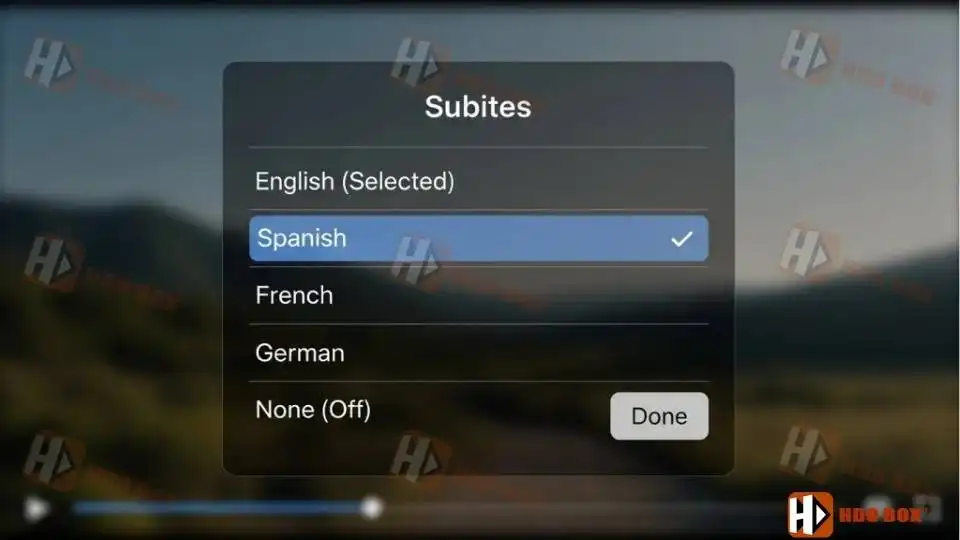
- Select the Subtitles / Closed Captions icon
- Make sure subtitles are set to ON, not Off
- Choose a subtitle language (Arabic, English, Spanish, etc.)
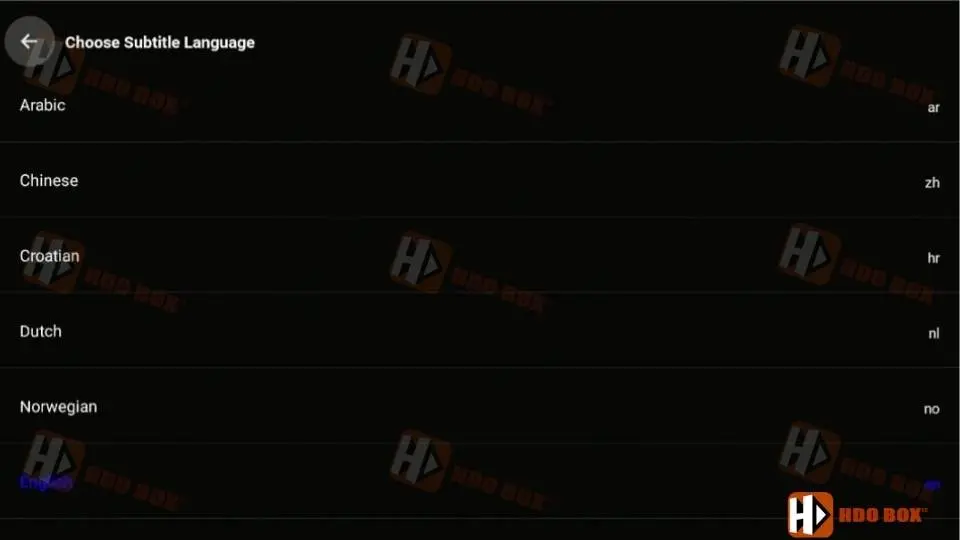
If no language is selected, subtitles will not appear.
Try a Different Movie or Episode
Sometimes the issue is not the app, but the content source.
- Exit the current video
- Play a different movie or TV episode
- Check if subtitles work on another title
Some streaming sources simply do not include subtitle files or may have broken subtitle links.
Restart or Reinstall HDO Box
If subtitles still do not work, refresh the app.
Restart the App
- Close HDO Box completely
- Reopen it and test subtitles again
Reinstall the App
- Uninstall HDO Box
- Restart your Android device
- Reinstall the latest version of HDO Box
- Test subtitles again
This often fixes subtitle issues caused by corrupted app files.
Clear Cache and Data on Android
Clearing cache can resolve playback and subtitle bugs.
- Go to Settings > Apps
- Select HDO Box
- Open Storage
- Tap Clear Cache
- If needed, tap Clear Data
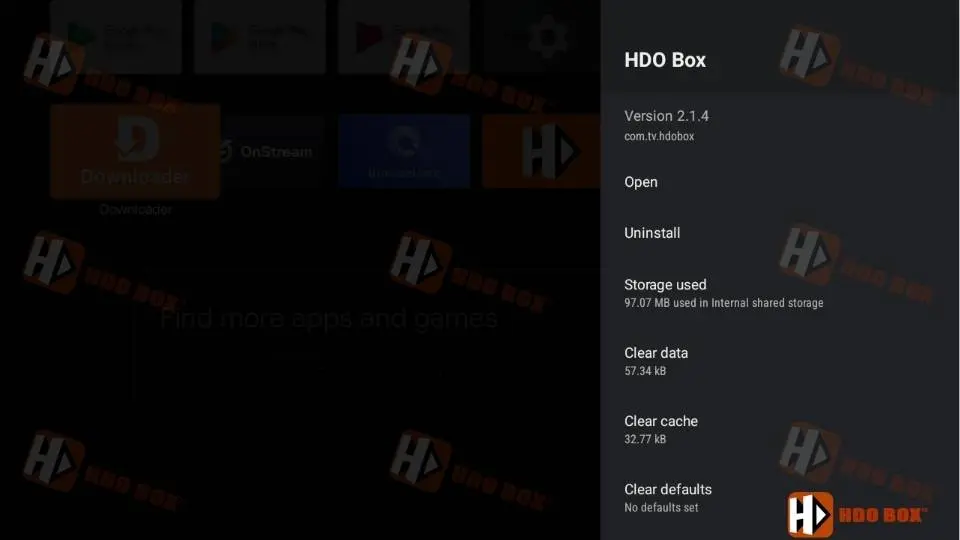
Note: Clearing data may reset app preferences.
Check Android Accessibility Caption Settings
Android system-wide captions can sometimes interfere with app subtitles.
- Go to Settings > Accessibility
- Open Captions or Hearing Enhancements
- Disable system captions or reset them
- Restart HDO Box and test subtitles again
This conflict is common on newer Android versions.
Check External Player Settings
On some devices, HDO Box uses an external media player.
If you are using a player such as VLC or another built-in player:
- Open the player settings
- Ensure subtitles are enabled
- Confirm the subtitle language is selected
- Disable subtitle overrides if available
A misconfigured external player can prevent subtitles from displaying.
Subtitle File Issues
In rare cases, subtitle files may be missing or corrupted.
- Try switching streaming sources (if available)
- Select a different resolution or server
- Reload the video
Broken subtitle files are source-dependent and cannot always be fixed from the app side.
Tips to Prevent Subtitle Problems
- Always update HDO Box to the latest version
- Avoid using multiple subtitle systems at once
- Do not mix Android captions with in-app subtitles
- Use trusted streaming sources
Final Thoughts
If HDO Box subtitles are not working on Android, the issue is usually related to in-app settings or the selected video source. In most cases, enabling subtitles manually and choosing a language fixes the problem immediately.
By following the steps above, you should be able to restore subtitles and enjoy a smooth viewing experience on Android phones, tablets, and Android TV.