HDO Box for iOS is a popular free streaming app that allows iPhone and iPad users to watch movies and TV shows in high quality without subscriptions. Designed specifically for iOS and iPadOS, the app delivers a smooth, mobile-friendly experience while remaining lightweight and easy to use.
Table of Contents
ToggleWhat Is HDO Box for iOS
HDO Box for iOS is a third-party entertainment application built for Apple devices. Unlike many iOS movie apps, it does not host content directly. Instead, it fetches streaming links from external providers, which helps keep the app lightweight and responsive.
Because the app is not available on the Apple App Store, it must be installed manually using a sideloading method.
Key Features of HDO Box on iOS
HDO Box stands out among free movie apps for iOS thanks to its practical feature set:
- Large and frequently updated movie and TV show library
- HD streaming support with selected 4K links
- Clean and user-friendly interface for iPhone and iPad
- Multi-language subtitle support with customization options
- Watchlist and favorites for quick access
- Trakt integration to sync watch history across devices
- Lightweight design that uses minimal storage
How to Download and Install HDO Box on iOS
Since Apple restricts third-party apps, HDO Box iOS must be installed using a sideloading tool. One of the most common and reliable methods is using Sideloadly on a computer.
System Requirements Before Installation
Before starting, make sure your devices meet the following requirements.
Requirements for Your Computer:
A Windows PC running Windows 7 or later
The official desktop (non–Microsoft Store) version of iTunes installed
The official desktop version of iCloud installed
If you previously installed iTunes or iCloud from the Microsoft Store, uninstall them first. Then install the standard desktop versions directly from Apple.
After installing iTunes and iCloud, restart your computer before continuing.
Requirements for Your iPhone or iPad:
- An iPhone or iPad running iOS 10 or later
- An active Apple ID signed in on the device
- A stable internet connection
- A Lightning or USB-C cable
Files and Tools Needed:
- Sideloadly tool (latest version): Here
- HDO Box IPA file from a trusted source.
| App Name | HDO Box for iOS/iPad |
|---|---|
| Size | 25 MB |
| Latest Release | January 2026 |
| Category | Entertainment |
| Price | Free |
| Latest Version | v1.1.1 – Build: 4 |
| Downloads | 1,312,071+ |
Step-by-Step Installation Using Sideloadly
Devices I used for this tutorial:
- iPhone 15, iOS 18.5
- Windows 10 PC
Step 1: First, connect your iPhone or iPad to your computer using a cable and make sure the device is recognized correctly.
Step 2: Next, install and open the Sideloadly application on your computer. The interface will show your connected device and iOS version.
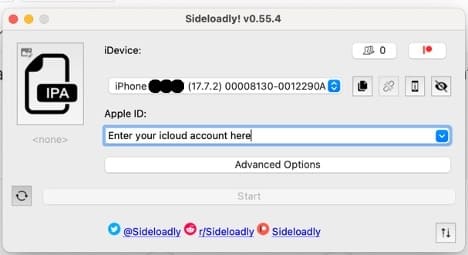
Step 3:Then, add the HDO Box IPA file by dragging it into the Sideloadly window or selecting it manually.
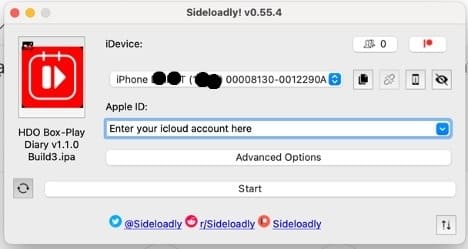
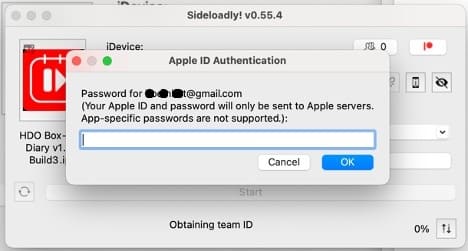
Step 4: Enter your Apple ID when prompted. This is required to sign the IPA file. Using a secondary Apple ID is recommended for security reasons.
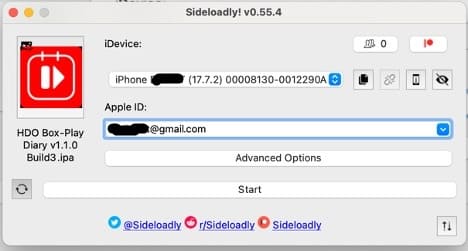
Step 5: Start the installation process and wait for it to complete. Once finished, the HDO Box app icon will appear on your device. You may be prompted to enter your Apple ID password for verification.
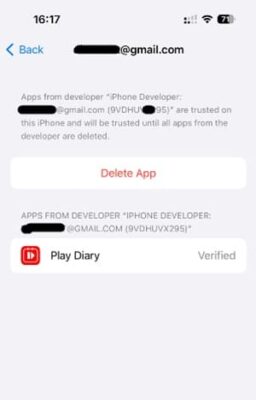
Step 6: If you see an “Untrusted Developer” message, go to Settings, open General, then Device Management, and trust your Apple ID.
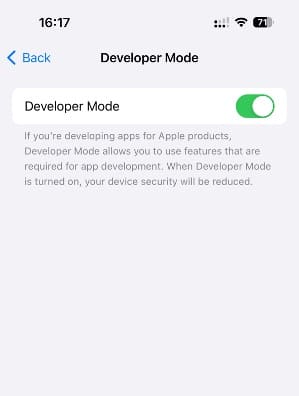
Step 7: On newer iOS versions, you may also need to enable Developer Mode under Privacy and Security, then restart your device.
Video Tutorial: Below is a tutorial video I recorded on my device; video instructions may make it easier for you to successfully complete the process than written steps.
Important Notes for iOS Users
- Apps installed with a free Apple ID expire after 7 days and must be reinstalled
- Paid Apple Developer accounts remove this limitation
- Always download IPA files from trusted sources
- Make sure the IPA version matches your iOS version
- Use a secondary Apple ID for sideloading whenever possible
Common Problems and Solutions
- If the app does not open, make sure the developer certificate is trusted in settings.
- If installation fails, check that your iOS version is supported.
- If Sideloadly cannot detect your device, update iTunes and reconnect the cable.
- If Apple ID errors occur, try signing out and back in or using a different Apple ID.
Final Thoughts
HDO Box for iOS is a flexible and powerful free movie app for iPhone and iPad users. With HD streaming, subtitle customization, and a lightweight design, it delivers a smooth viewing experience without subscriptions or hidden fees.
For users looking for a reliable HDO Box iOS alternative or a simple way to watch movies on Apple devices, HDO Box remains one of the best options available.
Why does HDO Box need to be reinstalled after 7 days?
If you use a free Apple ID for sideloading, Apple limits third-party apps to 7 days. After this period, the app will stop working and must be reinstalled. A paid Apple Developer account removes this limitation.
Does HDO Box support subtitles on iOS
Yes, HDO Box supports multiple subtitle languages. Users can adjust subtitle size, color, and synchronization directly from the video player.
What should I do if HDO Box is not working
If the app crashes or does not open, make sure the developer certificate is trusted, Developer Mode is enabled, and the IPA version matches your iOS version. Reinstalling the app often fixes most issues.
Is HDO Box legal to use on iOS
HDO Box does not host content directly. However, users are responsible for complying with local laws regarding streaming and copyright. Always use the app responsibly.
Is HDO Box free to use on iOS
Yes, HDO Box is completely free. There are no subscription fees, no hidden charges, and no account registration required to stream content.