What Does “Install Apps from Unknown Sources” Mean
By default, Firestick and Android TV only allow apps from official stores such as the Amazon Appstore or Google Play Store.
When you enable Install Apps from Unknown Sources, you allow specific apps (like Downloader or a browser) to install APK files from outside those stores. This is required for sideloading.
Important Security Warning
Enabling unknown sources gives you more control, but it also increases security risk.
Always remember:
- Only install apps from trusted sources
- Avoid modified or unofficial APK files
- Do not grant unnecessary permissions
- Disable unknown sources when not in use
How to Enable Install Apps from Unknown Sources on Firestick
Follow these steps on Amazon Firestick or Fire TV devices.
Step 1: Open Settings
- From the Firestick home screen, select the Settings (gear icon).
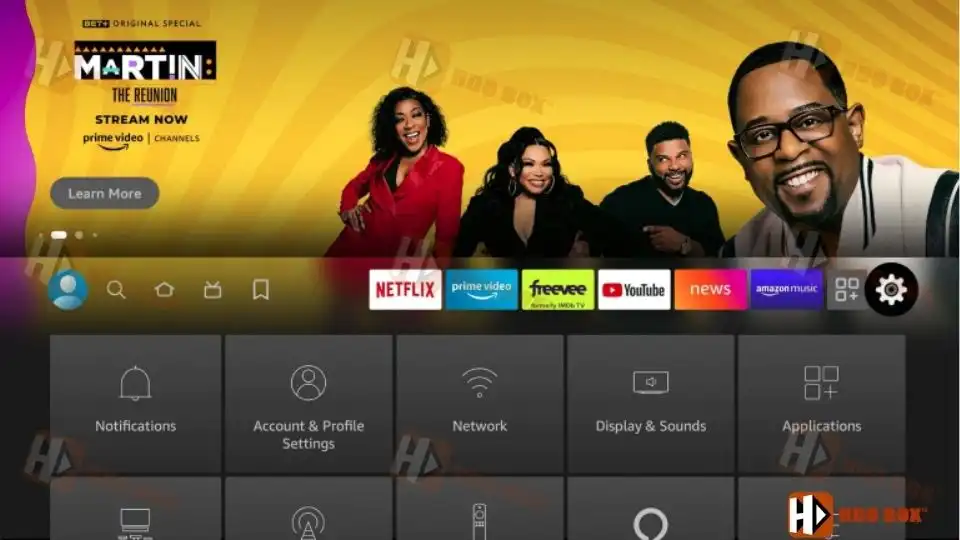
Step 1: Open Settings
Step 2: Go to My Fire TV
- Scroll down and select My Fire TV. (On older models, this may appear as Device.)
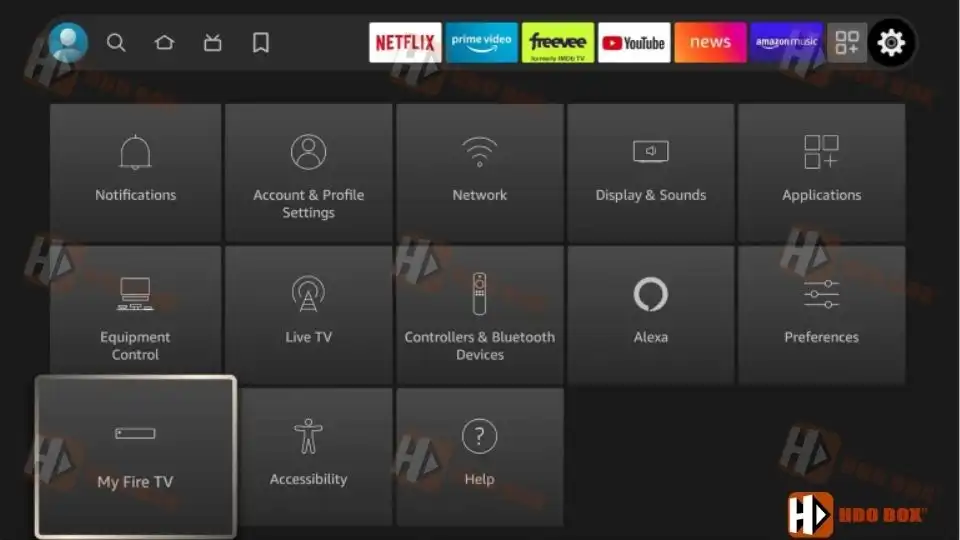
Go to My Fire TV
Step 3: Open Developer Options
Developer Options are hidden by default by the device manufacturer. Follow the instructions to “Enable Developer Options“.
- Go back to the My Fire TV menu.
- Select Developer Options.
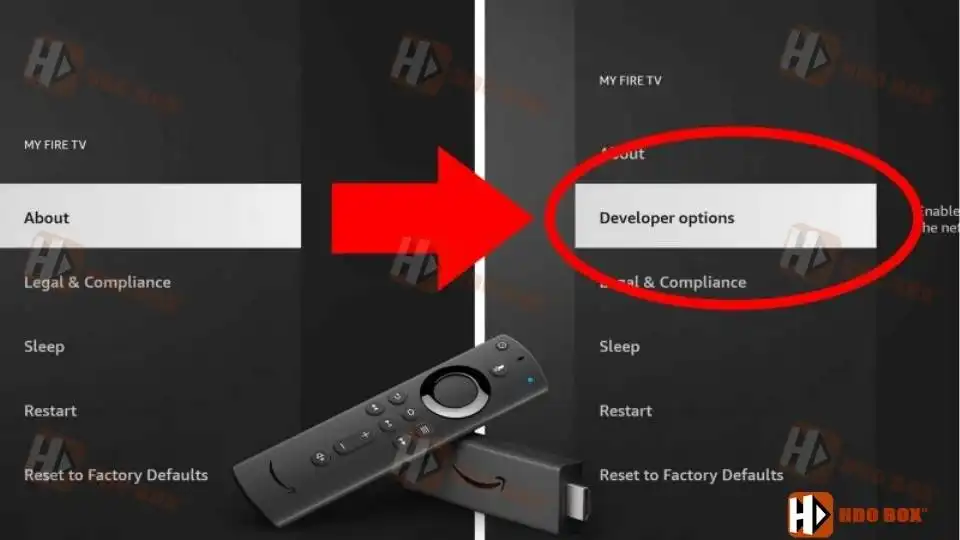
Open Developer Options
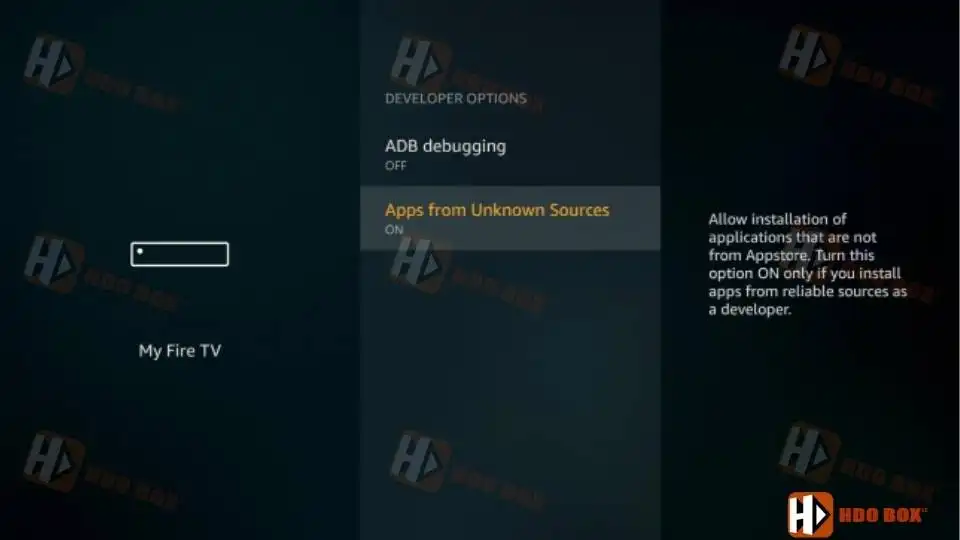
Step 4: Enable Install Unknown Apps
- Select Install unknown apps (or Apps from Unknown Sources).
- You will see a list of apps. Choose the app you will use to install APK files, such as:
- Downloader
- File Manager
- Web Browser
- Turn Allow ON for that app.
- Unknown sources are now enabled on your Firestick.
How to Enable Install Apps from Unknown Sources on Android TV
The process on Android TV and Google TV is slightly different but just as easy.
Step 1: Open Settings
- From the Android TV home screen, select Settings.
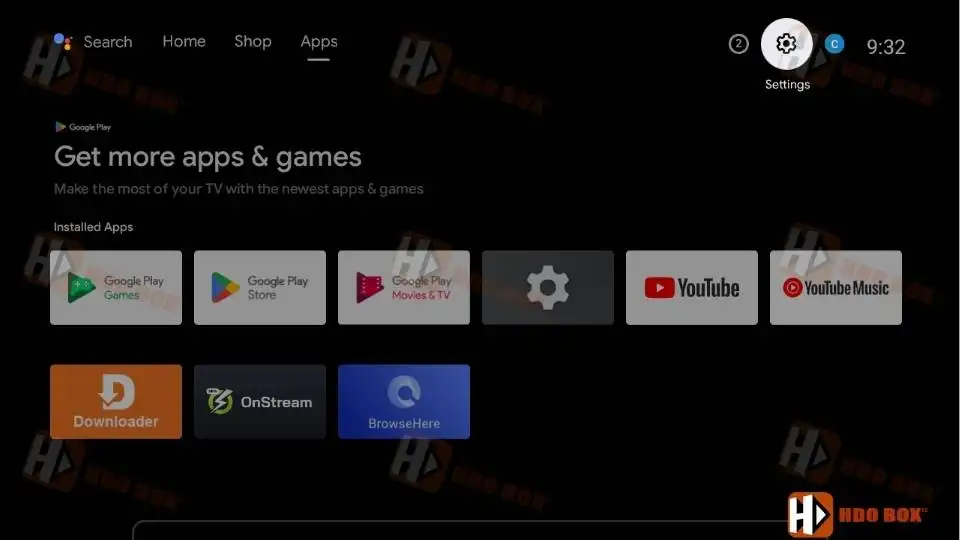
Open Settings
Step 2: Go to Apps
- Navigate to Apps and select See all apps.
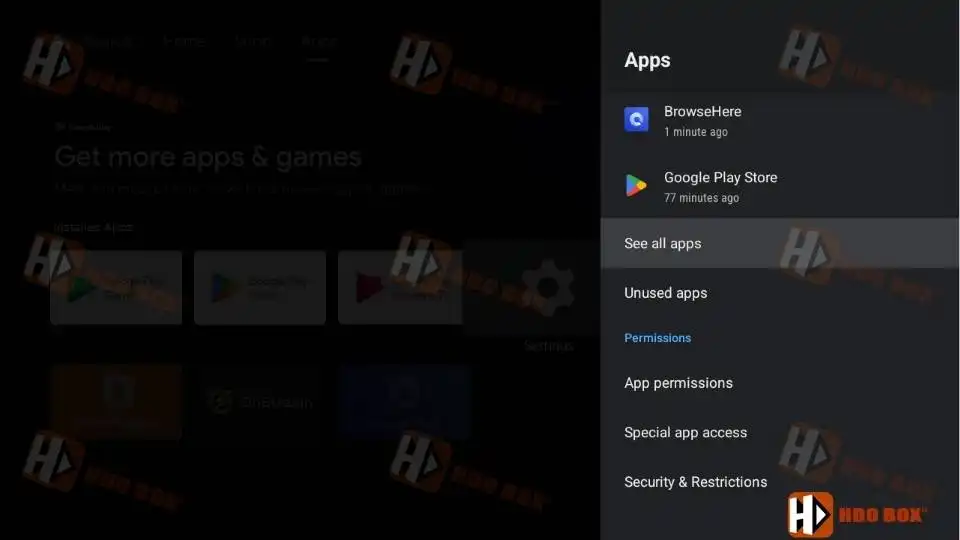
Go to Apps
Step 3: Open Security & Restrictions > Unknown Sources
- Scroll down and select Access unknown sources.
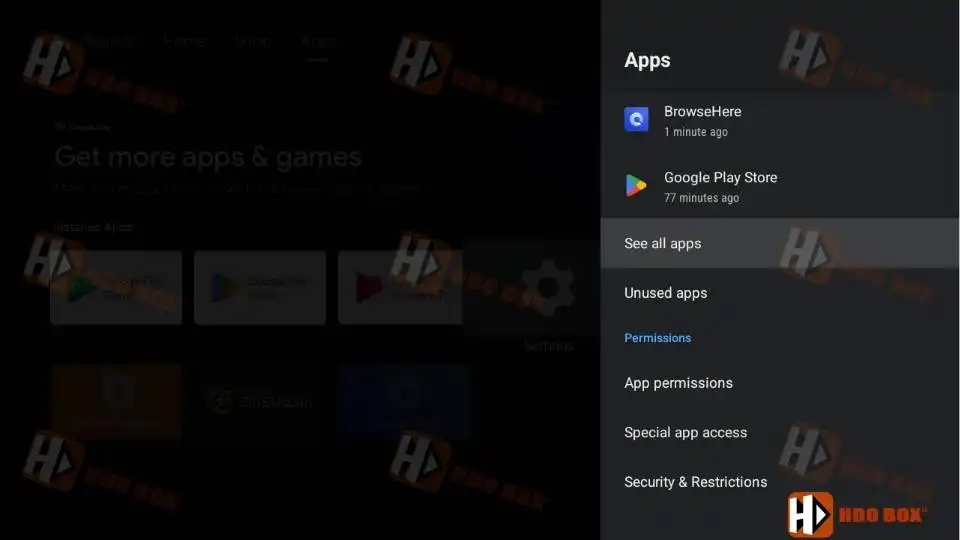
Open Security & Restrictions > Unknown Sources
Step 4: Select Install Unknown Apps
- Choose Install unknown apps.
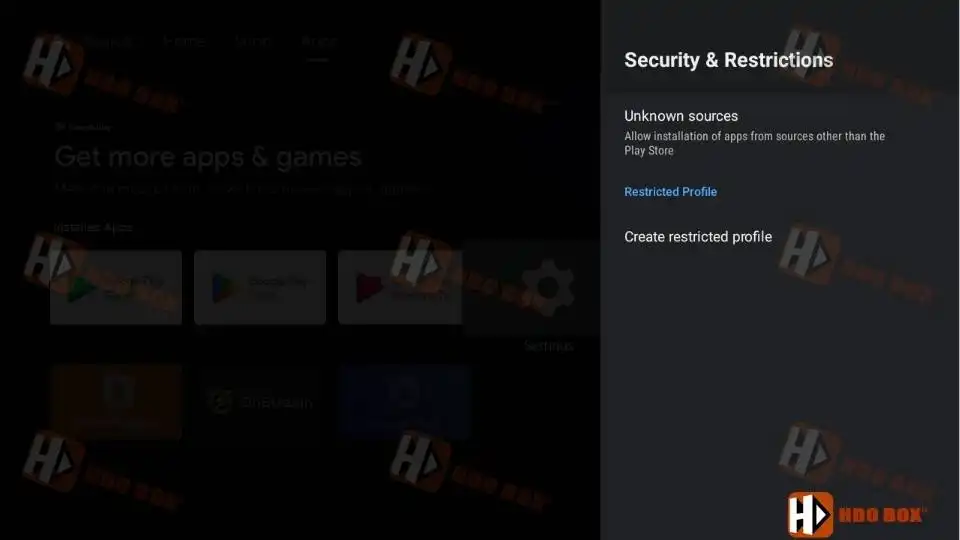
Select Install Unknown Apps
Step 5: Grant Permission
- Select the app you will use to download APK files, such as:
- Web browser
- File manager
- Downloader
- Turn Allow from this source ON.
- Unknown app installation is now enabled on Android TV.
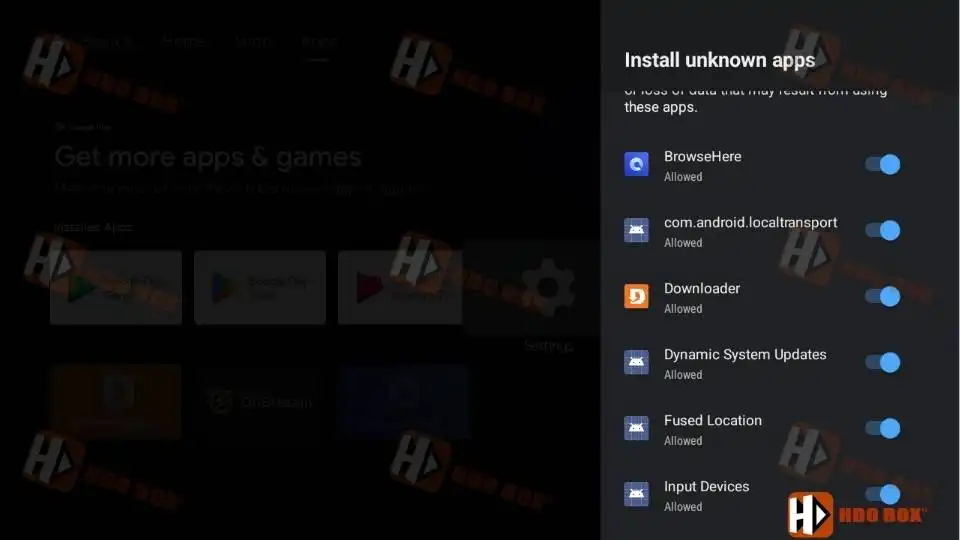
Grant Permission
Why This Setting Is Required
Many popular streaming apps are not available on official app stores. Enabling unknown sources allows you to:
- Install third-party streaming apps
- Use sideloading tools like Downloader
- Fix “App not installed” errors
- Gain full control over your device
Without this setting enabled, APK installation will fail.
Should You Disable Unknown Sources Later
Yes, if you no longer need to install apps, you can disable unknown sources again to improve security. You can re-enable it anytime by following the same steps.
Common Issues and Fixes
Developer Options not visible
Make sure you clicked the device name or build number at least 7 times.
Install unknown apps option missing
Check that Developer Options are unlocked first.
App install blocked
Ensure permission is enabled for the specific app you are using to sideload.
Final Thoughts
Learning how to enable install apps from unknown sources on Firestick and Android TV is essential for anyone who wants full control over their device. The process takes only a minute and unlocks the ability to install powerful third-party apps safely.
As long as you use trusted sources and stay cautious, enabling this setting can greatly expand your streaming options.