What Is HDO Box for PC.
HDO Box is a free streaming application that provides access to movies and TV series through external streaming sources. Since there is no native PC version, HDO Box for PC runs inside an Android emulator, which simulates an Android environment on your computer.

System Requirements for HDO Box on PC
This method works well on:
- Windows 7 or higher with DirectX 11.0 or OpenGL 4.x.
- Note: If the system bit only supports 32 bits and VT is not enabled, it cannot be installed.
- Apple macOS Intel & Apple Silicon Mac.
Using an emulator ensures stable performance and full access to the same features available on mobile and Android TV versions.
Before installing HDO Box on your computer, make sure your system meets the following requirements.
Minimum PC Requirements
- Windows 7 or later, or macOS
- At least 4 GB RAM recommended
- Stable internet connection
- An Android emulator installed
How to Install HDO Box on PC Using an Android Emulator
Since HDO Box is an Android app, you must use an emulator to install it on your PC. In the following guide, I’m using a Macbook Pro 2020 M1 running macOS 13.6 Ventuna; the process is similar for Windows.
Step 1: Choose and Install an Android Emulator.
Select one of the popular Android emulators below:
Windows, Apple macOS Intel:
- LDPlayer: official website.
- MEmu Play: official website.
- Nox Player: official website.

Download the emulator from its official website and follow the on-screen instructions to complete the installation.
Step 2: Set Up the Emulator.
- Launch the emulator after installation.
- Sign in with your Google account if required. This step helps the emulator function properly and allows easier file management.
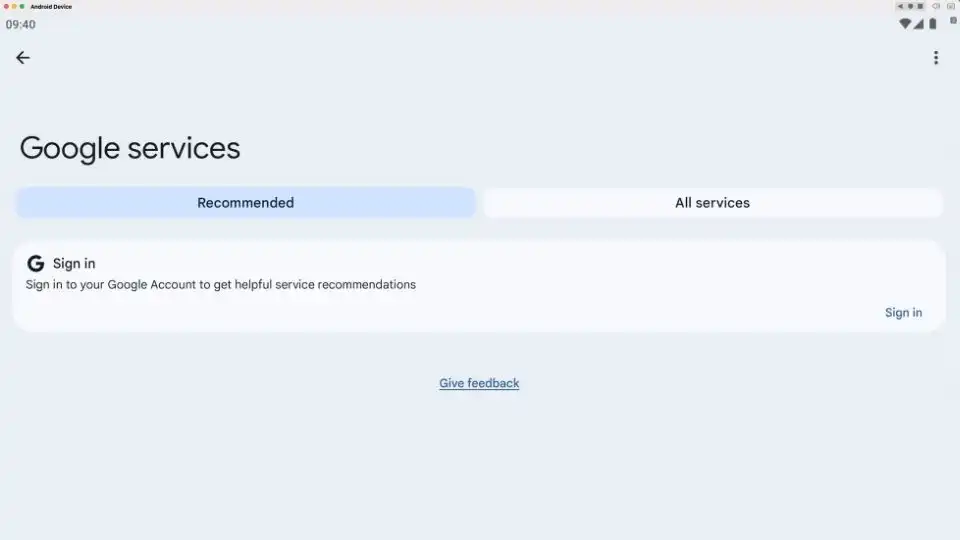
Set Up the Emulator.
Step 3: Download the HDO Box APK for PC.
- Open the web browser inside the emulator.
- Enter the following address in the address bar: www.hdoboxse.com/tv/
- Wait for the browser to download the APK file and proceed to step 4.
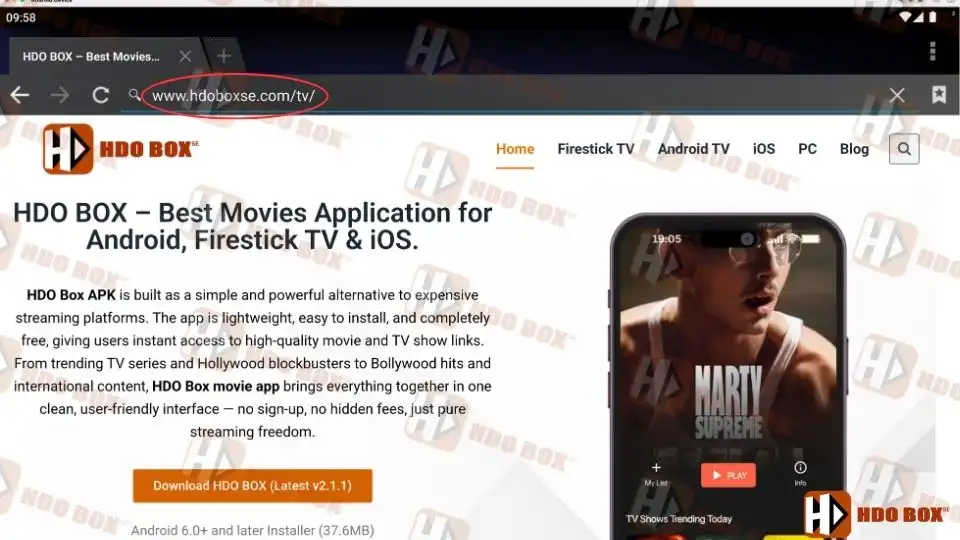
Step 4: Install HDO Box APK.
- Once the APK download is successful, a message will appear asking if you want to install it?. Click “Install” on the browser screen to install.
If there is no message, locate the downloaded APK file in the emulator’s file manager.
Double-click the APK file or drag and drop it into the emulator window.
Follow the instructions to complete the installation process.
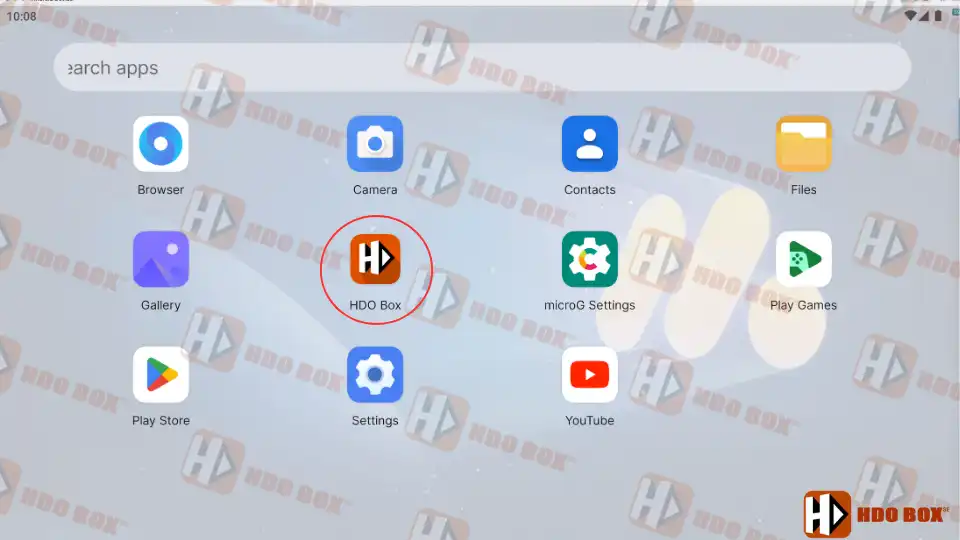
After installation, the HDO Box icon will appear on the emulator’s home screen.

Step 5: Launch and Use HDO Box on PC.
- Open HDO Box from the emulator.
- Allow necessary permissions and let the content library load.
- You can now browse, search, and stream movies or TV shows directly on your PC.
Using Drama Player on PC
For better playback compatibility, many users install Drama Player for PC inside the emulator. This external player improves video format support and subtitle handling, especially for HD content.
When prompted, select Drama Player as the default video player for HDO Box.
Final Thoughts
HDO Box for PC is an excellent solution for users who want free movie streaming on a desktop or laptop. By using an Android emulator, you can enjoy the same features available on mobile devices with the added benefit of a larger screen and improved viewing comfort.
With easy installation, HD streaming, and no subscription fees, HDO Box remains one of the best free movie apps for PC in 2026.