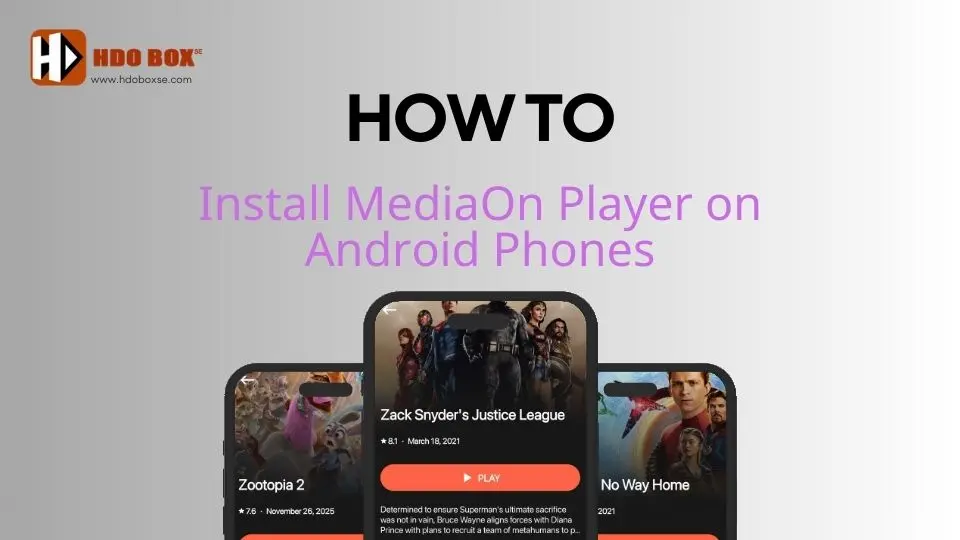
What Is MediaOn Player?
MediaOn Player is an external media player designed to handle streaming links used by apps like HDO Box. It does not host content on its own. Instead, it acts as a playback engine that helps decode video streams more efficiently than built-in players.
- Decoding video streams.
- Handling subtitle formats correctly.
- Improving playback stability on mobile devices.
- Reducing video loading and playback errors.
Android phones and tablets require MediaOn Player to handle video decoding and subtitles correctly. If you are using Android TV, Firestick, or PC, you can safely skip this installation.
System Requirements for MediaOn Player (Android Only).
Before installing MediaOn Player, make sure your device meets these requirements:
- Android 7.0 or later.
- Android phone or tablet (not TV or Firestick).
- Stable internet connection.
- Permission to install apps from unknown sources.
How to Install MediaOn Player on Android Phones.
Follow these steps to install MediaOn Player correctly.
Step 1: Enable Unknown App Installation.
- Open your phone Settings.
- Go to Security or Privacy.
- Enable Install unknown apps for your browser or file manager.

Step 2: Download MediaOn Player APK.
- Download the MediaOn Player APK from a trusted source recommended for HDO Box users.
- Wait for the download to complete.

Step 3: Install the App.
- Tap the downloaded APK file.
- Select Install and wait until the process finishes.
Once installed, MediaOn Player will appear in your app list.

How MediaOn Player Works with HDO Box.
After installation:
- Open HDO Box on your Android phone
- Select a movie or TV show
- When asked to choose a player, select MediaOn Player
- Choose Always to set it as the default
From this point, HDO Box will automatically use MediaOn Player for playback.
Final Notes.
MediaOn Player is only necessary for Android phones and tablets. If you are using HDO Box on Android TV, Firestick, or PC, you do not need this app.
Installing MediaOn Player on the correct device ensures smoother playback, better subtitle support, and a more stable HDO Box experience on mobile.